Connect TikTok
TubeCMS can display your TikTok videos on a dedicated page on your site, synced via the TikTok API.
Setup steps
- Go to Admin Panel → Social → Integrations
- Find the TikTok section
- Click Connect TikTok
- You'll be redirected to TikTok to authorise access
- Log in and grant the requested permissions
- You'll be redirected back to TubeCMS
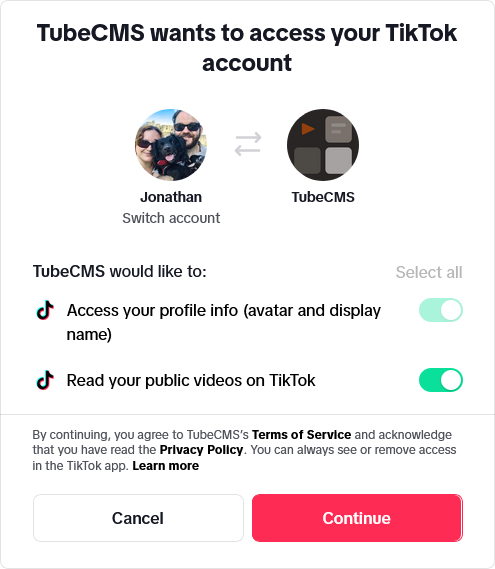
TikTok OAuth authorisation screen
TubeCMS requests read-only access to your public videos — we never post or modify your TikTok content.
What's synced
- Your public TikTok videos
- Video thumbnails, titles, and timestamps
- View and like counts
- Video links (embed or link back to TikTok)
Videos sync automatically in the background. You can also trigger a manual sync from Admin Panel → Social → TikTok by clicking Sync Videos.
TikTok settings
Manage your TikTok settings from Admin Panel → Social → TikTok:
- TikTok Page — toggle the dedicated TikTok page on or off on your site
- Unified Feed — include or exclude TikTok videos from the homepage unified feed
- Nav Label — customise the name that appears in your site navigation (e.g. rename from "TikTok" to "Shorts" or "Clips")
Hiding individual videos
You can hide specific videos from your site without removing them from the sync. Toggle the visibility icon next to any video in the list on the TikTok settings page.
TikTok on homepage
You can add a TikTok section to your homepage via the homepage builder (Admin Panel → Settings → General, then the Homepage tab). TikTok videos are also included in the Unified Feed section if enabled.
TikTok page
Your TikTok content appears at /tiktok on your site (or whatever you've set the nav label to).
Disconnecting
Go to Admin Panel → Social → Integrations → TikTok → Disconnect. This removes your token and all synced TikTok data from your site.