Customise your site appearance
TubeCMS gives you full control over how your site looks — choose a template, pick colours, set fonts, upload your own logo, and add hero banners.
Templates
TubeCMS includes 8 site templates, each with its own navigation, hero, card, and footer style:
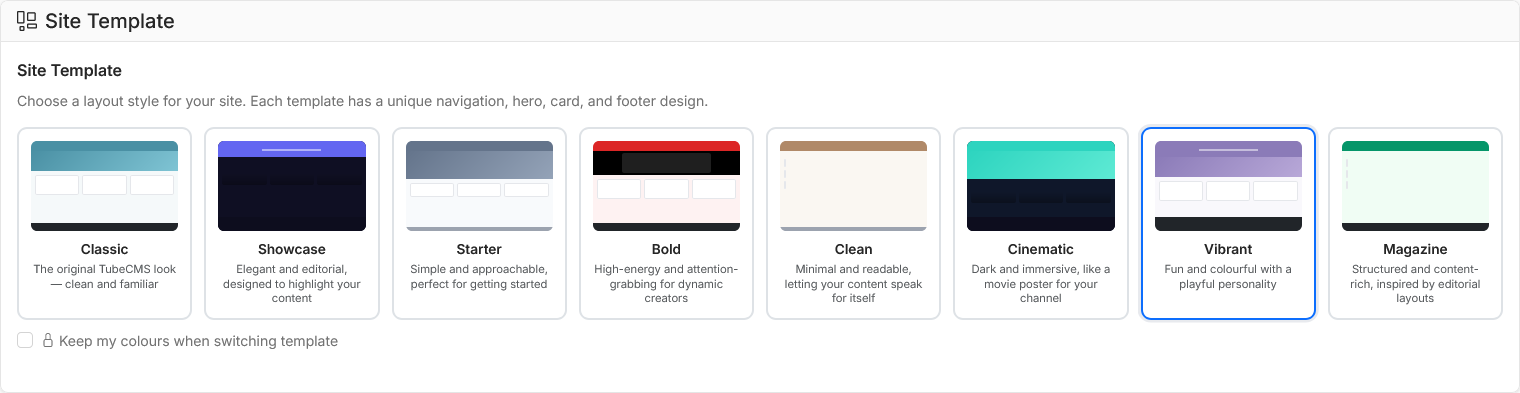
Template picker showing all 8 templates
To change your template, go to Admin Panel > Settings > General, then the Appearance tab and select a template. The change is instant — no content is lost.
Colour presets
Choose from 15 built-in colour presets to quickly theme your site. These are available on all plans.
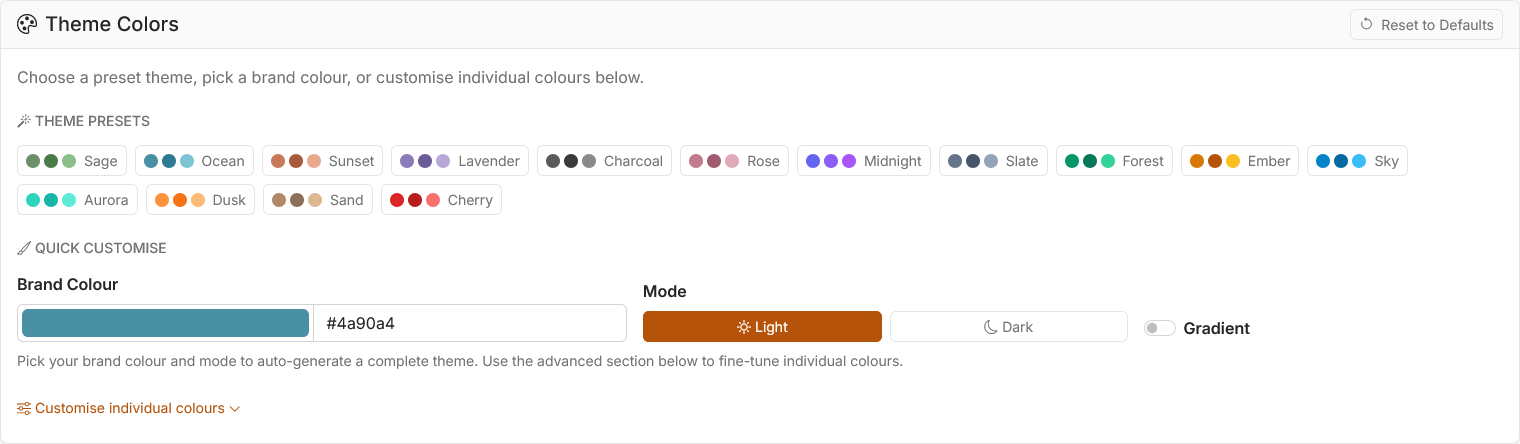
Colour preset picker showing preset swatches.
Go to Admin Panel > Settings > General, then the Appearance tab and click a preset under Theme Presets to apply it.
Custom colours (Starter+)
On Starter and Pro plans, you can customise your site's colours beyond the presets. There are 14 individual colours you can control:
- Primary — buttons, links, and main accent colour
- Secondary — supporting colour used for secondary elements
- Accent — highlights and hover states
- Light — light background and border accents
- Primary Dark — darker variant of the primary colour
- Background — main page background
- Card Background — background of cards and content boxes
- Card Hover — card background on hover
- Text — main body text colour
- Text Muted — secondary and less prominent text
- Border — borders and dividers
- Link — hyperlink colour
- Navbar Background — navigation bar background
- Navbar Text — navigation bar text and links
Two ways to set these:
- Quick Customise — pick a brand colour, choose light or dark mode, and toggle a gradient effect. TubeCMS auto-generates a complete theme from your brand colour.
- Advanced — expand the advanced section to fine-tune each of the 14 colours individually using colour pickers.
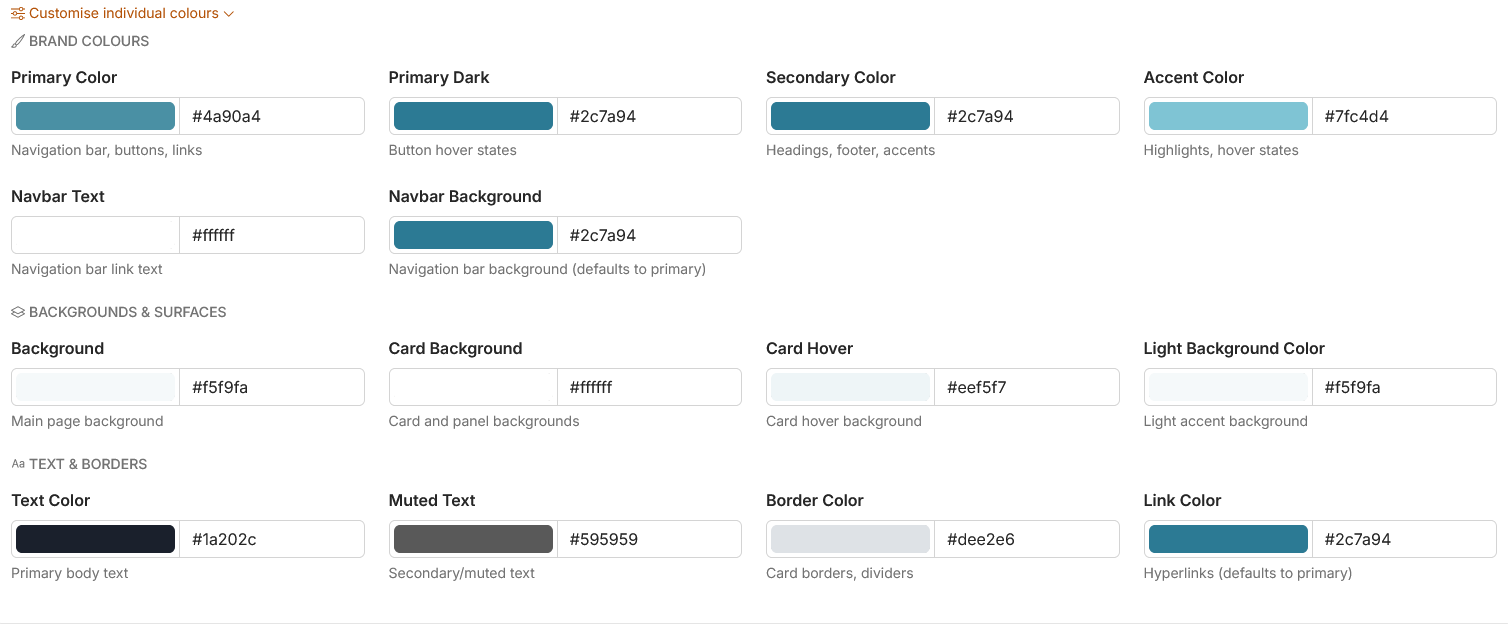
Custom colour editor with colour pickers
Fonts
Choose separate fonts for body text and headings. All fonts are loaded from Google Fonts and are available on all plans.
Available fonts:
- Lora (default) — elegant serif
- Open Sans — clean, modern
- Roboto — Google's signature font
- Montserrat — bold, geometric
- Playfair Display — classic serif
- Merriweather — easy to read
- Source Sans Pro — professional
- Nunito — friendly, rounded
- Poppins — modern, trendy
- Raleway — stylish, thin
- Inter — UI-focused
- Work Sans — contemporary
You can also adjust the site title font size and navigation font size for further control.
To change fonts, go to Admin Panel > Settings > General, then the Appearance tab and scroll to the Typography section.
Logo
Upload your logo from the Appearance tab. Supported formats: PNG, JPEG, WebP, SVG. Your logo appears in the navbar.
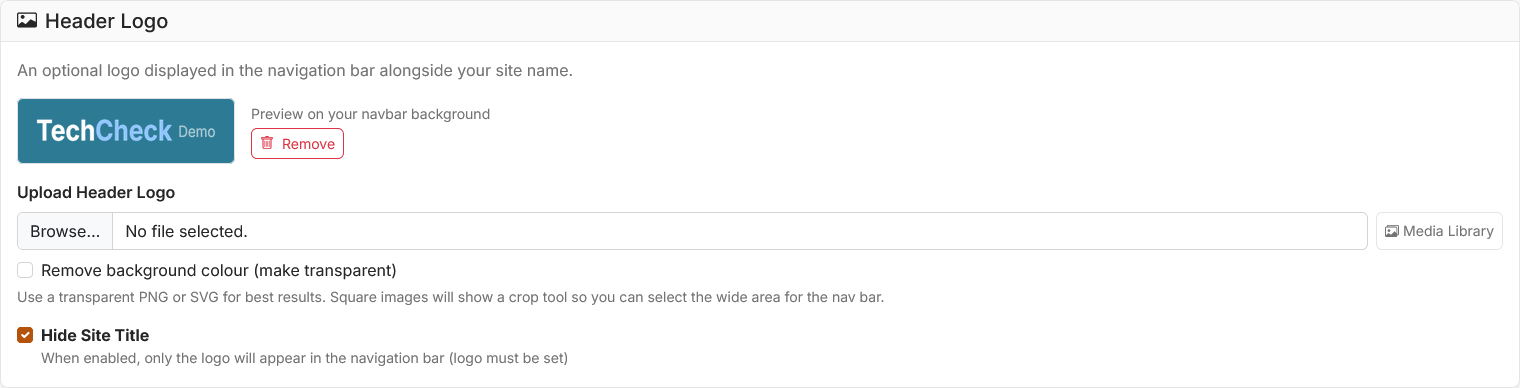
Logo upload section
Favicon
Upload a favicon (the small icon shown in browser tabs) from the same Appearance tab. Square images work best — 32x32 or 64x64 pixels.
Banners and page overrides
The Appearance tab also includes hero banner uploads and per-page banner overrides. See the dedicated Banners and hero images help article for full details.