Set up your contact page
TubeCMS includes a contact form at /contact so your audience, brands, and sponsors can reach you.
Enabling the contact form
The contact form is enabled by default. To toggle it:
- Go to Admin Panel → Content → Site Content
- Toggle Contact on or off
How it works
When someone submits the form:
- Their message is saved in your admin panel
- You receive a push notification (bell icon) in your admin panel
- On paid plans, you also get an email notification at your account email
- Spam is filtered using Cloudflare Turnstile (invisible CAPTCHA)
On the free plan, check your Contact Inbox regularly — email notifications are only available on Starter and above.
Viewing messages
Go to Admin Panel → Contact Inbox to view and manage submitted messages.
Contact form designs
Choose from four contact form styles in Admin Panel → Content → Site Content under the Contact section:
- Classic — standard stacked form (all plans)
- Card — form in a floating card (all plans)
- Split — side-by-side info panel and form (Starter+)
- Minimal — clean, borderless layout (Starter+)
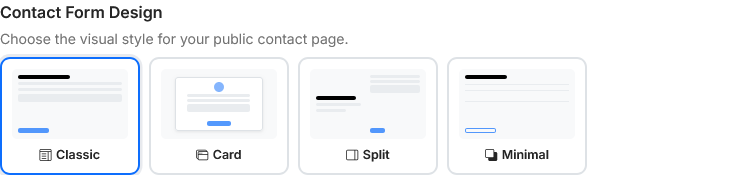
Contact form designs
Custom intro text
Add custom text above the contact form from the same Contact section in Site Content. This supports markdown formatting and is useful for setting response time expectations or listing alternative contact methods.
Discord notifications
On the Pro plan, you can also receive contact form submissions as Discord messages. Add a Discord webhook URL in Admin Panel → Settings → General under the Integrations tab.