Set up your FAQ page
Every TubeCMS site includes a built-in FAQ page. It's a great place to answer common questions from your audience — collabs, sponsorships, equipment, upload schedule, etc.
Adding questions
- Go to Admin Panel → Content → FAQs
- Scroll to FAQ Entries → Add New FAQ
- Enter the question and answer
- Click + Add FAQ
- Drag to reorder entries
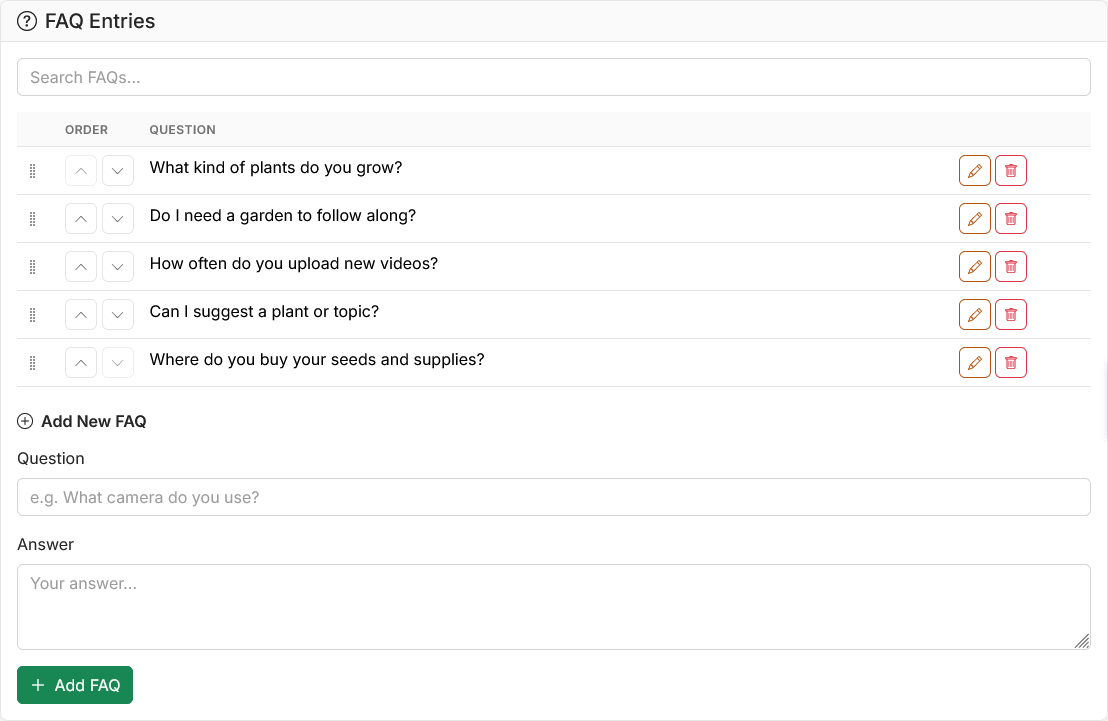
FAQ admin page with drag-to-reorder entries
Display styles
Choose how your FAQs appear on the public page from the Display Style section:
- Accordion — click-to-expand with brand-coloured headers. Only one question open at a time by default. Optional Start expanded toggle opens all questions on page load. Includes Expand all / Collapse all buttons for visitors.
- Cards — each Q&A in its own card with a coloured left border
- Simple List — all Q&As visible at once, clean and minimal
Linking to a specific question
Every FAQ entry has a copy link button (link icon) next to the question. Clicking it copies a direct URL like yoursite.com/faq#faq-42 to the clipboard. This is useful for:
- Sharing a specific answer in comments or social media
- Linking from other pages on your site
- Sending to someone who asked a question you've already answered
The page will scroll directly to that question and highlight it.
Intro text
You can add custom introductory text above your FAQ entries. This is editable from the same page.
FAQ page URL
Your FAQ page lives at /faq on your site.
Visibility
Toggle the FAQ page on or off from Admin Panel → Content → FAQs → FAQ Page Visibility. When turned off, the page and its nav link are hidden from visitors.
SEO
Your FAQ page automatically includes FAQPage structured data (schema.org). This means Google can display your questions and answers directly in search results as rich snippets — giving your site more visibility without any extra work.