Sponsorship and disclosure labels
TubeCMS lets you add disclosure labels to individual videos and blog posts, helping make sponsored content clear on your website and supporting your disclosure compliance efforts in jurisdictions such as the UK and US. In the UK, the CAP Code says marketing communications must be obviously identifiable. In the US, the FTC says material connections between a creator and a brand should be disclosed. In the EU, consumer-law guidance requires commercial communications to be transparent and advertising activity to be disclosed.
Adding a disclosure to a video
- Go to Admin Panel → Content → Videos
- Click Edit on the video you want to label
- Under Disclosure, select the type:
- Ad — paid advertisement
- Ad / Affiliate — includes affiliate links or codes
- Ad / Gifted — product was gifted by a brand
- Ad / PR Trip — content was created during a brand-sponsored trip
- Save
A small badge appears on the video card on your site, making the disclosure visible to visitors.
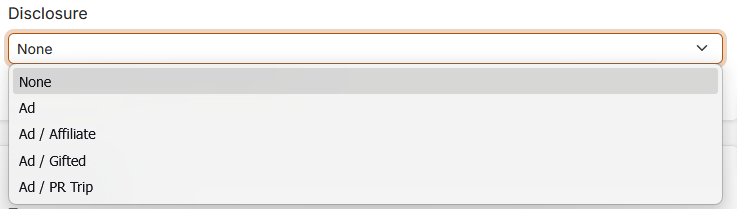
Video edit form showing the disclosure dropdown
Adding a disclosure to a blog post
If you generate a blog post from a sponsored video, the disclosure carries over automatically. You can also set it manually when editing any blog post.
Why this matters
Many jurisdictions require commercial content to be clearly disclosed:
- UK (ASA/CAP) — ads must be obviously identifiable.
- US (FTC) — material connections between a creator and a brand should be disclosed.
- EU — commercial communications must be transparent, and advertising activity should be disclosed.
YouTube's own disclosure tools only appear on YouTube. TubeCMS lets you show a disclosure badge on your own website as well.
What visitors see
A small badge, such as Ad, appears on the video card or blog post on your site. It is visible without dominating the content.
Removing a disclosure
Edit the video or blog post and set the Disclosure dropdown back to None.