Getting started with TubeCMS
TubeCMS is a website builder designed specifically for YouTube creators. It connects directly to your YouTube channel and builds a full website around your content — videos, blog, merch, newsletters, and more.
What you get
- A website at
yourname.tubecms.app(or your own custom domain) - Your YouTube videos synced automatically
- A blog with AI-powered post generation from video transcripts
- Merch store integration (Fourthwall, Shopify, Etsy)
- Email subscriber list with upload notifications
- Link-in-bio page, FAQ, contact form, and more
- 8 site templates and 15 colour presets
Creating your site
Go to launch.tubecms.app/start. You have two signup options:
Sign up with YouTube (recommended)
- Click Sign up with YouTube
- Sign in with the Google account that owns your channel
- Your channel name, avatar, banner, and videos are pulled in automatically
- Choose a site slug (e.g.
yourname.tubecms.app) - Your site is live immediately with all your videos once your email address is verified
This is the fastest route — your site is populated from the start.
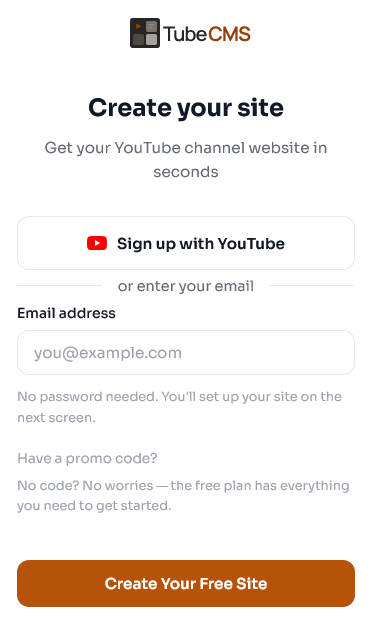
Signup page with both signup options
Sign up with email
- Enter your email address
- Choose a site slug
- Click the magic link sent to your inbox to verify
- Your site is created but empty — no videos or channel info yet
You'll be prompted to connect your YouTube channel during the Quick Setup wizard (step 3). Until you connect, your site will be in maintenance mode. You can also connect later from Admin Panel → Social → Integrations.
3 Step setup wizard
After signup, you're guided through a setup wizard to configure your site:
- Site info — site name, description
- Appearance — choose a template, upload a logo
- Connect YouTube — connect your channel (if you haven't already)
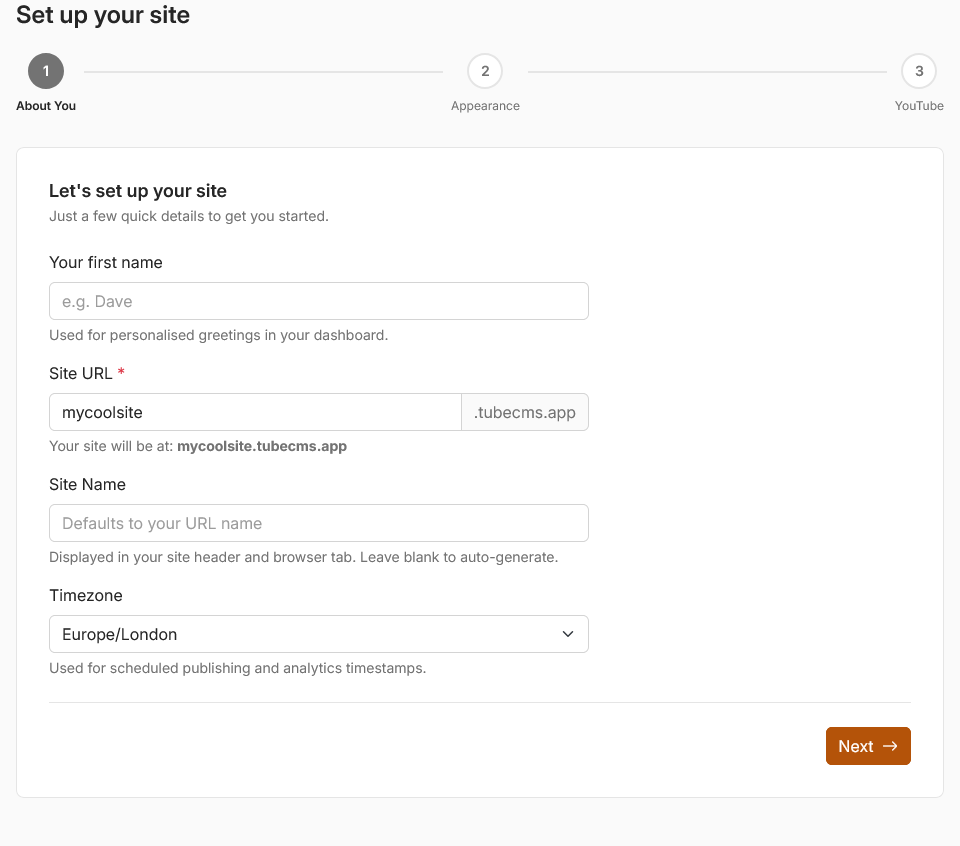
3 Step setup wizard
Quick Setup wizard
Once you're in your admin panel, you can run the Quick Setup wizard to configure your site step by step. You'll find it in Admin Panel → Quick Setup.
The wizard walks you through everything interactively with a live preview:
- Name & branding — site name, logo, favicon
- Theme & colours — choose from 8 templates and 15 colour presets
- Fonts — pick heading and body fonts
- Pages — toggle which pages to show (videos, blog, about, contact, FAQ, merch, link-in-bio)
- Banner — upload or import your YouTube banner with focal point control
- Welcome blurb — add an intro message to your homepage
- Page content — configure your about, contact, FAQ, and merch pages
- Homepage layout — drag and drop sections to build your homepage
- Blog & video display — customise how posts and video pages look
- Social links — add your socials to the footer and homepage
- SEO — set your site description and preview how it appears in search results
- Analytics — enable visitor stats
Each step saves as you go, and conditional steps (like merch or FAQ) only appear if you've enabled those pages. You can also skip the wizard entirely and configure everything yourself through the individual admin panel menus.